
Documentation
Personal Finance Suite
All-in-One Template
Getting Started
Here is how to get started with our all-in-one Personal Finance Suite template.
How to make sure Budget Tracking works correctly
Note: This section was added in response to some users having problems with having their tracked transactions accurately represented in the Budget Dashboard. This guide will help you understand how you must set up your accounts and account categories so that all relevant transactions are considered in the Budget Dashboard.
Summary
Not all Transactions are automatically considered by the Budget Tracking engine. While transactions of the budget type “Expenses” are always considered no matter which account has been assigned, transactions of the budget types “Income”, “Savings”, and “Debt” are only considered if the assigned Account is an asset account marked as “Available” via its Asset Category.
Golden Rule: Only your flow-through asset accounts (e.g. Checking Account, Cash) should be marked as “Available”. All other asset accounts (e.g. Savings, Investments) should not be marked as Available. This ensures that the Budget Dashboard only tracks money that flows through your flow-through accounts preventing double counting when money is moved between your own accounts.
Full Explanation
Whenever you classify a transaction as Budget Type equals either Income, Savings, or Debt, the transaction is only counted if the selected Account is marked as “available” via its asset category. That’s necessary because savings and debt allocations (and sometimes even income) are two-sided transactions, which means money is moved from one of your accounts to another accounts of yours.
Here are a few examples of how such a two-sided transactions looks like:
Example 1: Savings transaction – Moving $400 from Bank Account to Roth IRA account

Example 2: Debt transaction – Student Debt Payment of $300 from Bank Account

Example 3: Income – Dividend Income withdrawn

Comment: Most income transactions (e.g. receiving salary) are one-sided transactions, but in rare cases like when you withdraw money from one of your savings positions like here to then re-allocate it to some other purpose (e.g. expense, other asset account, etc.) income is coming from one of your own accounts.
To avoid the issue that both transactions cancel each other out, we need to mark the flow-through accounts (the accounts the money flows through from income to its allocation destination) as “available”, which ensures it’s considered in the budget tracking. The opposing account on the other hand, is a destination account and is supposed to not be marked as “available” via its category.
To better understand this concept, take a look at the following visulazation. It describes how the Flow-Through Accounts are those accounts the money “available for allocation” is routed through.
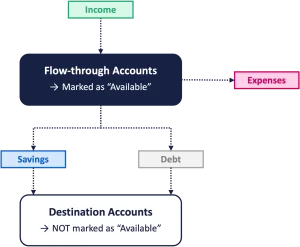
Flow-Through accounts are always asset accounts. Typical Flow-Through Accounts are your Checking Accounts and your Physical Cash.
To mark a Flow-Through account correctly as “Available” so that all transactions with those accounts assigned are considered for the budget tracking, you need to
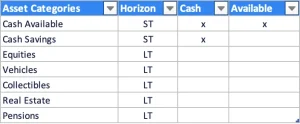
Step 1: In the Categories worksheet, set up an asset category that has the “x” set in the Available column. By default, we have already set up the “Cash Available” category for you, so you don’t necessarily need to set up your own custom asset category for that.
Step 2: Assign that asset category to all accounts you consider to be Flow-Through accounts. In the following example those are the asset positions “Bank Account” and “Cash on Hand”.
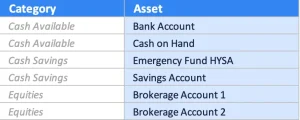
Step 3: Make sure all other accounts like savings account, brokerage accounts, etc. – which typically are on the receiving end of a two-sided transactions – have an asset category assigned that is NOT marked as “Available” in the asset categories table. That’s because you want all other asset accounts should be treated as Destination Accounts as money is typically moved to them in a Savings transaction and you don’t want it to cancel out the other side of the transaction.
As you see in the screenshot above, all other accounts (Emergency Fund HYSA, Savings Account, Brokerage Accounts) have asset categories assigned which are not marked as “Available”. For that reason, all transactions assigned to these accounts will not be considered by the budget tracking engine. But the money moved into or out of them is still considered if the other side of the transaction assigned to one of your flow-through account is tracked correctly.
Budget Dashboard
Here is how to use the Budget Dashboard and how to understand all the insights.
Net Worth Dashboard
Here is how to use the Net Worth Dashboard and how to understand all the insights.
Net Worth Projection
Here is how to use the Net Worth Projection to model your potential future net worth development.
Here is an overview of all input fields and what they do
Controls
End-of-Projection: The year up until the projection is modelled and visualized.
Output Mode: Choose between nominal and inflation-adjusted output values. The inflation rate used for inflation adjustment is the Personal Inflation rate in the Fundamentals section.
Input Mode Extra CF: Choose if you want the initial amount entered for your extra cashflows should be treated as nominal value or as the present value (PV). Nominal value means the amount you enter is taken exactly as stated, assuming it reflects the value in the start year without adjusting for inflation. The amount you enter represents the value in today’s money, meaning what it would be worth right now. The model will then internally adjust this value for the entered starting year using your personal inflation rate.
Input Mode Retirem. Income: Choose if you want the initial amount entered for your retirement income should be treated as nominal value or as the present value (PV). Nominal value means the amount you enter is taken exactly as stated, assuming it reflects the value in the start year without adjusting for inflation. The amount you enter represents the value in today’s money, meaning what it would be worth right now. The model will then internally adjust this value for the entered starting year using your personal inflation rate.
Assumptions - Fundamentals
Initial Annual Net Income: Your initial main income per year after taxes. This should only cover your base income (e.g. job). Additional income can be listed as extra cashflow.
Initial Annual Expenses: Your initial expenses per year.
Income Growth: The annual growth rate you expect your base net income to grow at.
Personal Inflation Rate: The estimated rate at which your individual cost of living and purchasing power changes over time. In the Personal Finance Suite, it is used for two key purposes: To grow your base expenses nominally over time and to discount future cashflows in inflation-adjusted mode.
Desired annual expenses (in PV): This input is not used in the model, but as a reference level for multiple metrics in the Metrics Projection section.
% of Surplus to Liabilities: This value determined how much % of the surplus (after deducting the expenses from the income) in a year should be contributed to reduce debt (liabilities).
Asset Gain (IRR): The assumed annual asset gain by which the total assets grow each year
Liability Costs (ECR): The assumed annual liability costs (interest) by which the total liabilities grow each year
Min. Principal Repayment Rate: The minimum % of your outstanding liabilities that will be paid down using your monthly surplus, no matter how your surplus allocation is set. Even if you set “% of Surplus to Liabilities = 0%” (meaning your surplus would normally go 100% into assets), this setting ensures a minimum debt repayment level is always maintained.
Assumptions - Key Points in Time
Your Birthday: Your birthday date which is used to display your age in different years in various parts of the worksheet.
Retirement Start Year: The first year of your retirement. That means, the year before that is the last year of your main profession (e.g. job).
Retirement Annual Net Income: The annual net income (e.g. state pension) you will receive starting in your retirement start year.
Retirement Income Growth : The annual growth rate of your retirement net income.
Assumptions - Tax on Liquidation
Taxable Fraction of Asset Sale: The percentage of your asset sales that is subject to taxation.
Avg. Effective Tax Rate: The estimated average tax rate applied to the taxable portion of the sale.
Annual Tax-Free Allowance: The amount of realized gains per year that remains tax-free and will be deducted from taxable gains before the effective tax rate is applied.
FAQ
Find answers to the most asked questions for this template.
Transactions Tracking
Not all of my transactions are represented in the Budget Dashboard. What can I do?
This 99% of the time is caused by an incorrect setup of your asset accounts and asset account categories. Please take a look at the section called “How to make sure Budget Tracking works correctly”.
How to deal with credit card payments correctly?
Credit card payments should be tracked differently depending on what part of the balance you are paying down:
Payments that cover last month’s spending
These payments are simply settling what you already consumed. They do not reduce your interest-bearing outstanding balance.
→ Classify them as Transfer in the budget type column.Payments that reduce your outstanding credit card debt
These payments directly lower the balance on which interest is charged, meaning they are effectively paying down debt.
→ Classify them as Debt in the budget type column.
Why the distinction matters:
Only the second type of payment reduces your actual debt and future interest costs. Treating the first as “spending” again would double-count it in your budget, which is why it belongs in the Transfer category instead.
How to deal with dividend payouts?
It depends on where the dividend goes after it’s paid out:
Dividend stays in your brokerage/broker account
If the dividend is paid out but remains inside the same brokerage account and you don’t have a separate asset position listed for that cash, then you do not track it as a transaction.
→ Your net worth doesn’t change across your tracked asset positions, so there is nothing to log.Dividend is paid into another explicitly listed asset account (e.g. bank account, savings, cash position, etc.)
If the dividend leaves your brokerage account and lands in a separate asset account that you have listed as an individual asset position, then you should track two transactions to reflect the movement correctly:Transaction 1: Dividend moving out of your brokerage account
→ Budget type: Dividend (or your suite’s income label)Transaction 2: Dividend moving into your other listed asset account (e.g. your bank)
→ Budget type: Transfer
Why two entries?
Because the dividend changes the value between two tracked asset positions. One records the income event, the other records the asset movement. This ensures your net worth stays accurate and nothing is double-counted.
Other
Where do I find the calculation worksheets?
All calculation worksheets are hidden. You can unhide them by right-clicking on any of the visible worksheet tabs at the bottom and then click on “Unhide”. This will open a window allowing you to select which worksheets you want to unhide.